
Are Your Salesforce Permissions Out of Control?
Why permission management is a hidden admin headache:
1. You Have Dozens (or Hundreds) of Profiles
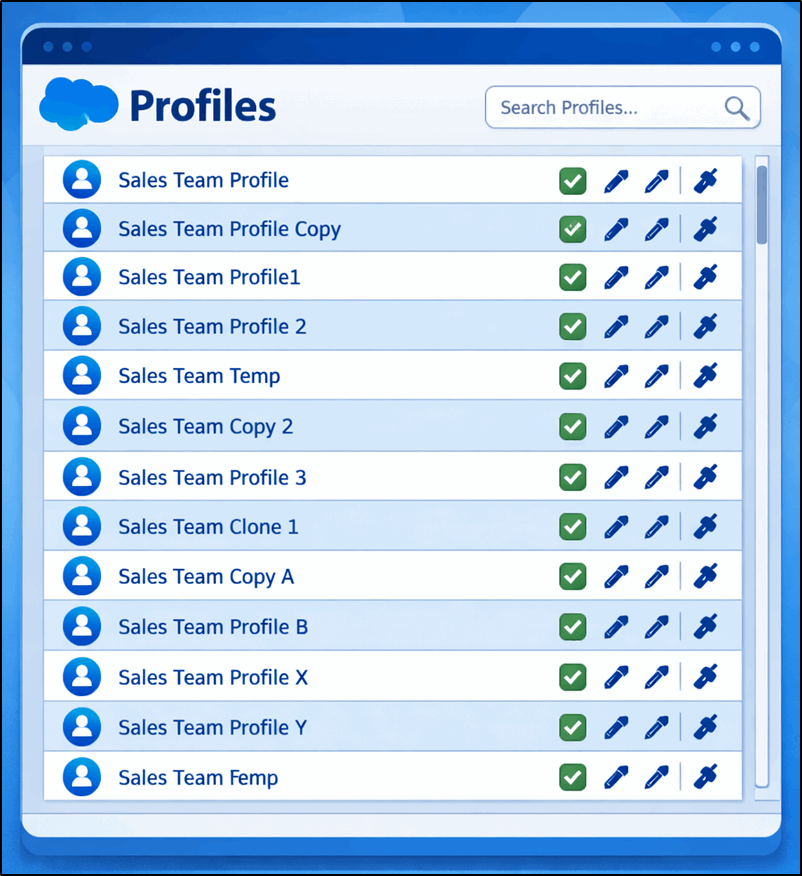
Profiles were historically used to control user permissions. Many orgs solved new access requirements by simply cloning profiles and making small adjustments. Unfortunately, these adjustments were hard to identify due to the size and complexity of the profile.
Over time, this leads to:
- 30+ profiles that look almost identical
- Minor variations between profiles
- No clear documentation explaining why each one exists
Profiles are difficult to maintain at scale. When a change is needed, admins often must update multiple profiles manually. This can create inconsistencies and security gaps.
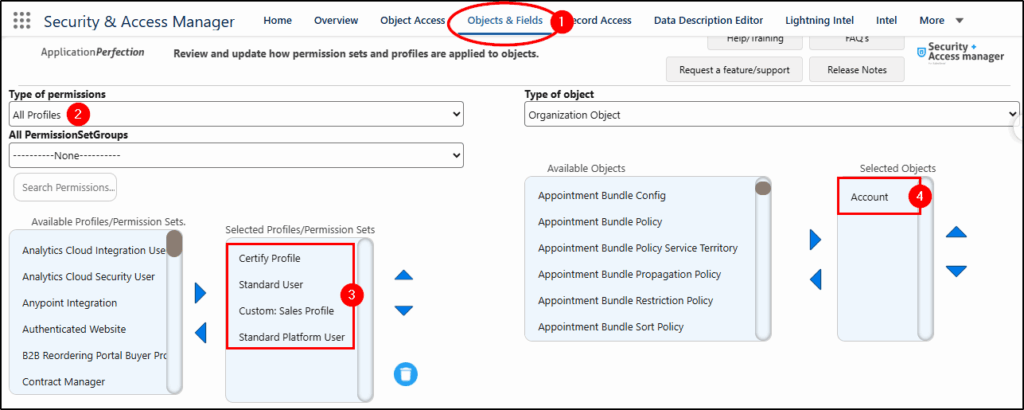
Here is how Security + Access Manager can help identify which profiles have Object and field level access to the Account object.
Choose the Objects & Fields menu (1)
Select: All Profiles (2)
Choose several profiles to compare (3)
Choose the Account object to inspect (4)
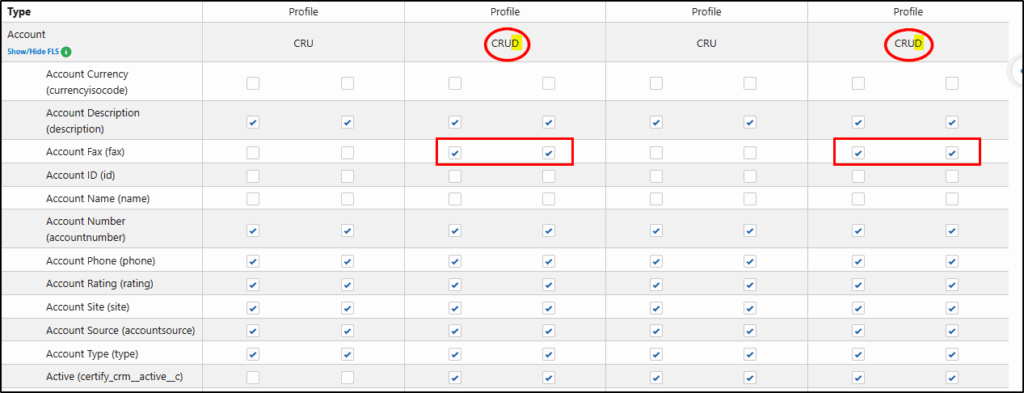
The results show that both the Standard User profile and the Standard Platform User profile have Delete access to the Account object (CRUD).
These two profiles also have Field Level Security access to the Account Fax field, which is redundant now and could be removed.
See Security & Access Manager in action here…
2. No One Can Explain Why a User Has Access
If someone asks:
“Why does this user have access to edit Opportunities?”
…and it takes an hour to figure out; your permission model is too complex.
Common causes include:
- Layered permissions from profiles, permission sets, and groups
- Legacy configurations from past admins
- Profiles and Permission Sets without descriptions
- Permission sets are assigned directly without documentation
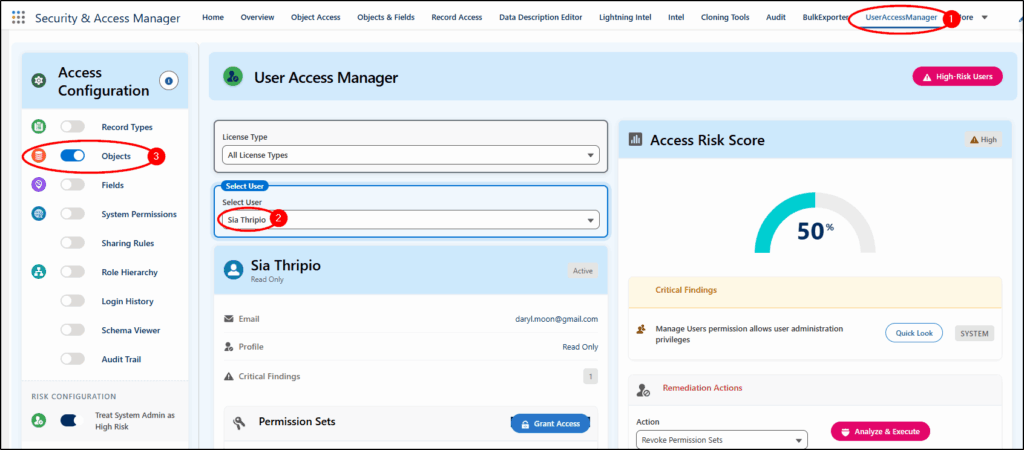
Using Security + Access Manager and the User Access Manager (1) feature, we choose a user (2), select Objects (3), and select the Opportunity object to display.
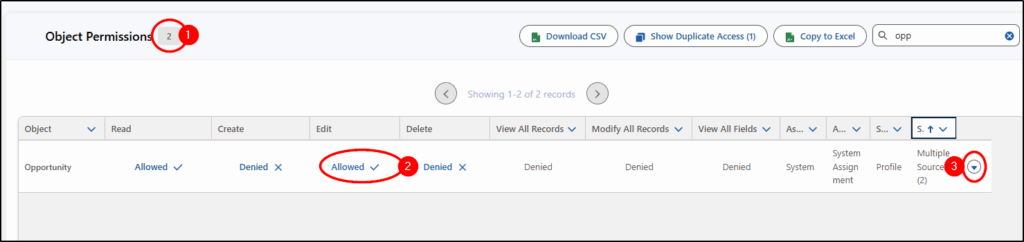
The result shows the combined Object Permissions (1) from all sources. Here we can see that Edit is Allowed (2). There are Multiple Sources found, and by choosing the drop-down arrow on the right (3), we can see exactly which Profile or Permission Set is granting this edit access.
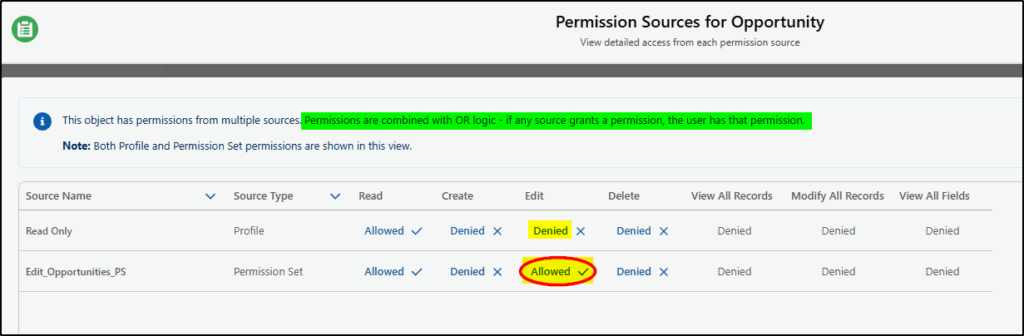
The Edit Opportunities PS (Permission Set) is the one that allows edit access.
(Note: Permissions are combined with OR logic, meaning any Allowed permission overpowers a Denied permission)
3. Admins Spend Too Much Time Fixing Access Issues
If you regularly receive requests like:
- “I can’t see this record.”
- “I can’t edit this field.”
- “Why can this user see everything?”
…then permissions are likely poorly structured.
Access in Salesforce is controlled by multiple layers:
- Object permissions
- Field-level security
- Record ownership
- Role hierarchy
- Sharing rules
- Permission sets
Without a clear structure, diagnosing problems becomes slow.
Let’s compare two users and see how we can combine profiles, permission sets, and sharing settings to see what is really going on under the covers.
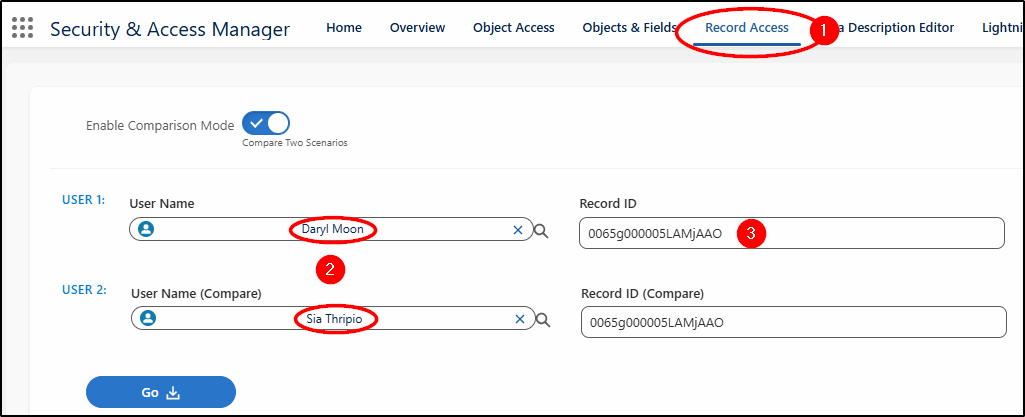
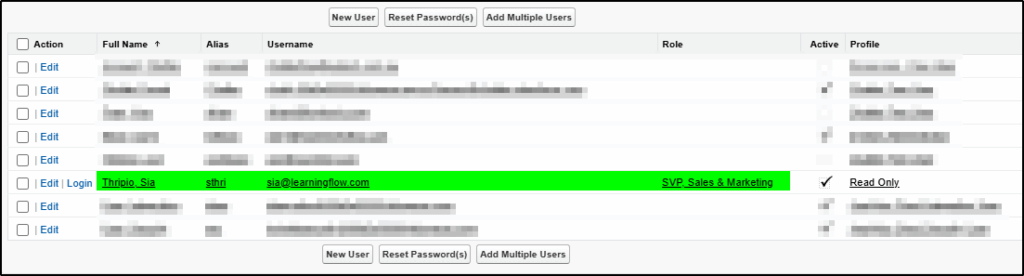
Starting with the Record Access app (1), we choose two users (2) and the ID of a record we want to inspect. (3).
Not surprisingly, with a System Administrator profile, Daryl has Modify All permissions.
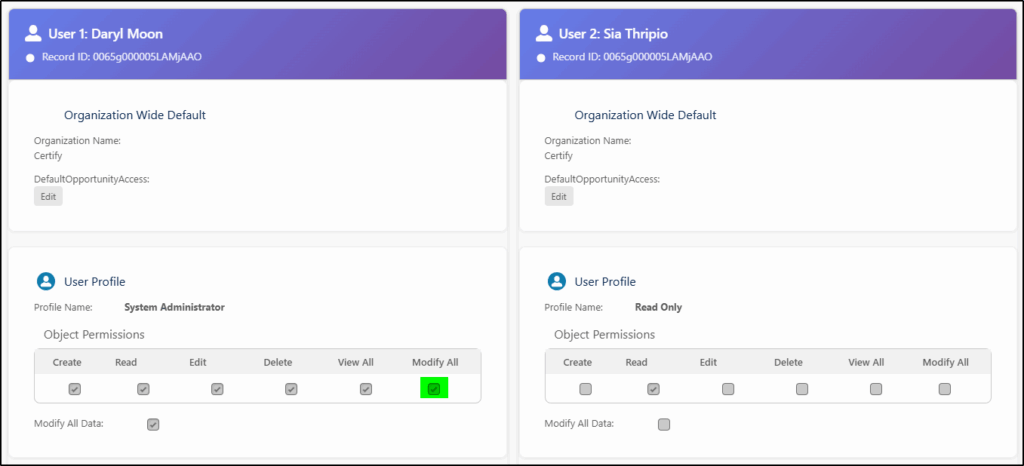
While Sia only had Read access to Opportunities via her Profile (Read Only), the Permission Set (Edit_Opportunities_PS) added Edit access to Opportunities.
The Public Group (Test Group 2) also gave her access to edit those records owned by the Role SVP, Sales & Marketing via a Sharing Rule (see below).
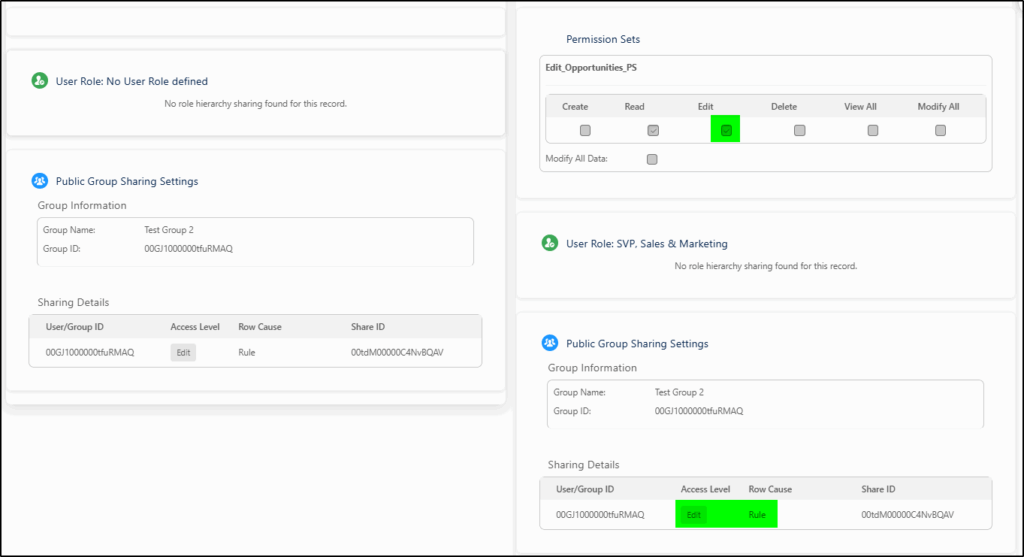
There was no need to dig down into the sharing rules…

and no need to find the user role either … the impacted Profiles, Permission Sets, and sharing permissions are all shown on the one screen by the Record Access app.
4. You’re Afraid to Change Anything
A major red flag is when admins say:
“I’m scared to change permissions because something might break.”
This usually means the permission structure has grown organically without a clear design, and as a result:
- Security vulnerabilities remain unresolved
- Audits become high risk
- Technical debt grows
Permissions are one of the most critical parts of any Salesforce org. When they become difficult to understand, they also become difficult to secure.

A well-structured permission model should make it easy to answer three questions:
- Who has access?
- What can they do?
- Why do they have that access?
If your org cannot answer those questions quickly, it’s time for a permission cleanup.
How Security + Access Manager solves these challenges:
- Intel Reports for comprehensive permission audits
- Mass audit and update permissions with a few clicks
- Centralized object/field access visibility
- Tools to troubleshoot record access quickly
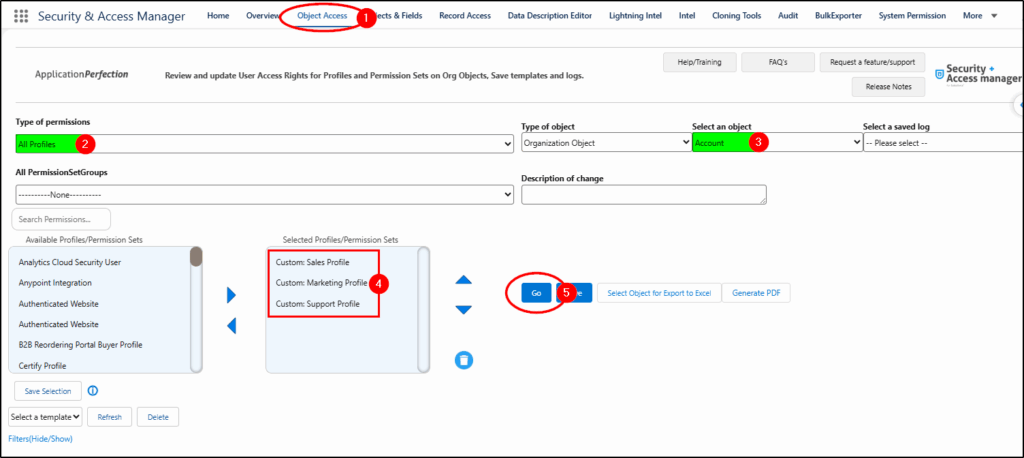
In this example, we will identify which custom profiles have Delete access for Accounts and remove their access. Then we discover they really did need that access, and we will demonstrate how to restore that access.
Starting in the Object Access app (1), we select All Profiles (2), choose the Account object (3), and then the three custom profiles we want to investigate (4). Finally, we click Go (5).
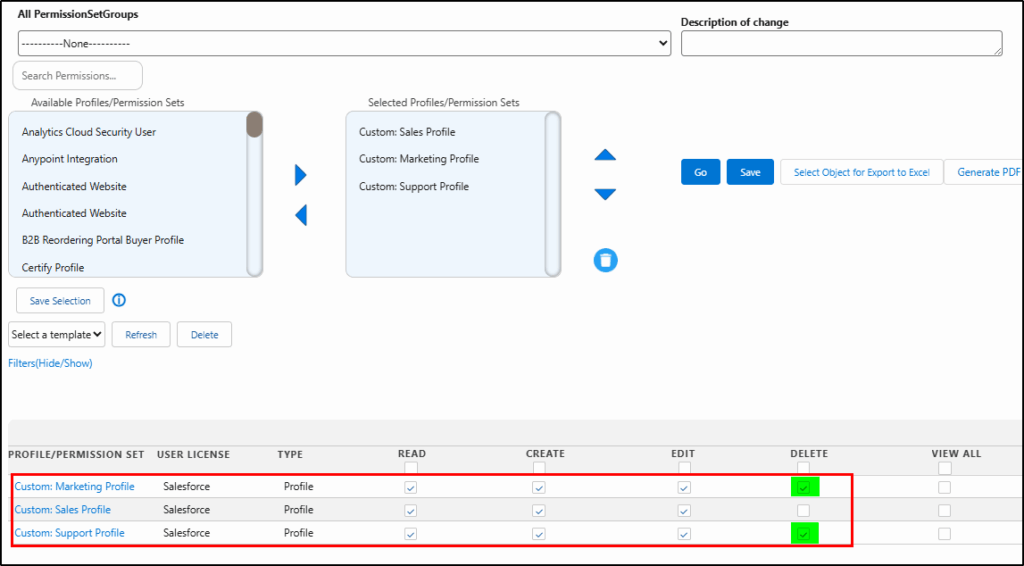
Two profiles have delete access:
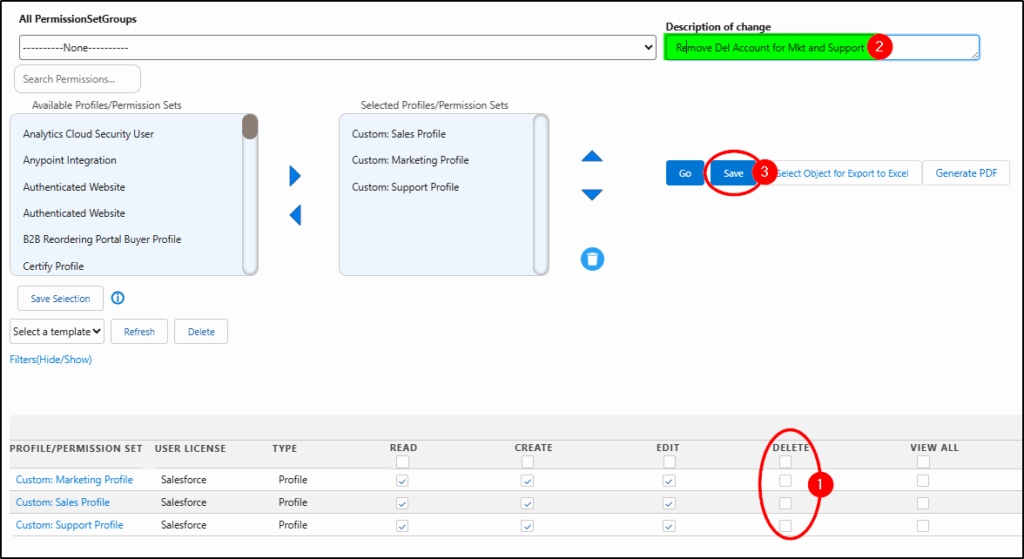
We remove Delete access for the two profiles by unchecking the boxes(1), providing a Description of the change (2), and then saving the changes (3).
Next, we discovered we made a mistake, so we simply selected a saved log (1) from the drop-down list and reverted the changes (2).
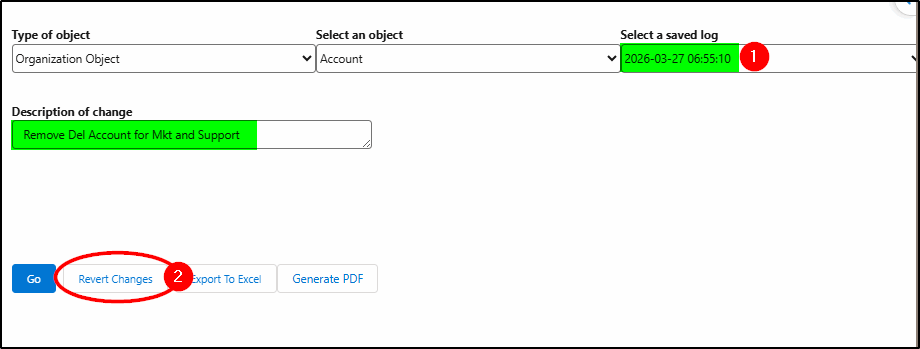
Permissions are now restored back to what they were before the change.

If you are struggling with managing Profiles, Permission Sets, Permission Set Groups, and sharing, it’s time to take a look at Security + Access Manager.
Try Security + Access Manager now (at the AppExchange)
https://appexchange.salesforce.com/appxListingDetail?listingId=a0N3A00000Ei6FwUAJ