
Report exports are changing in Salesforce.
Here’s what you need to know:
Salesforce has had a blitz on security updates lately, responding to many security breaches in the past 12 months. The “Step-Up Authentication” restriction is designed to prevent the loss or theft of data via users exporting reports. In addition, there are limitations on the number of rows that can be extracted.
Why Is Salesforce Making This Change?
In response to evolving cybersecurity threats, they are enhancing security and data protection. Reports and dashboard actions are considered high-risk vectors for data exfiltration. The step-up authentication framework provides these benefits.
When does this change occur?
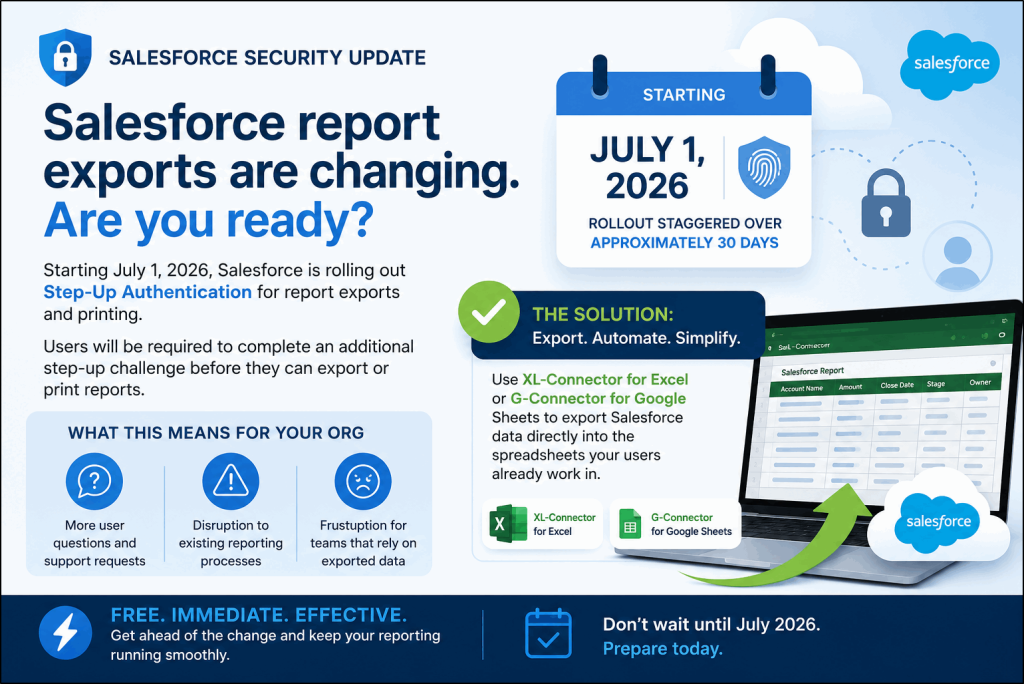
This security update is progressively being rolled out from 1 July, 2026 over a period of 30 days.
Once implemented, users will have an additional authentication step to go through before they can export or print reports. Your regular connected apps and workflows may be unable to export reports, and if they do, you will probably face some limitations.
Fortunately, there is a FREE, immediate solution: export Salesforce reports directly into the spreadsheet you already use with tools from xappex.com
With XL-Connector for Excel or G-Connector for Google Sheets, export Salesforce data directly into the spreadsheets your users already work in, while automating report refreshes and reducing manual effort.
What do the changes look like?
Once the Step-Up Authentication is rolled out to your Salesforce org, you will see two changes here:
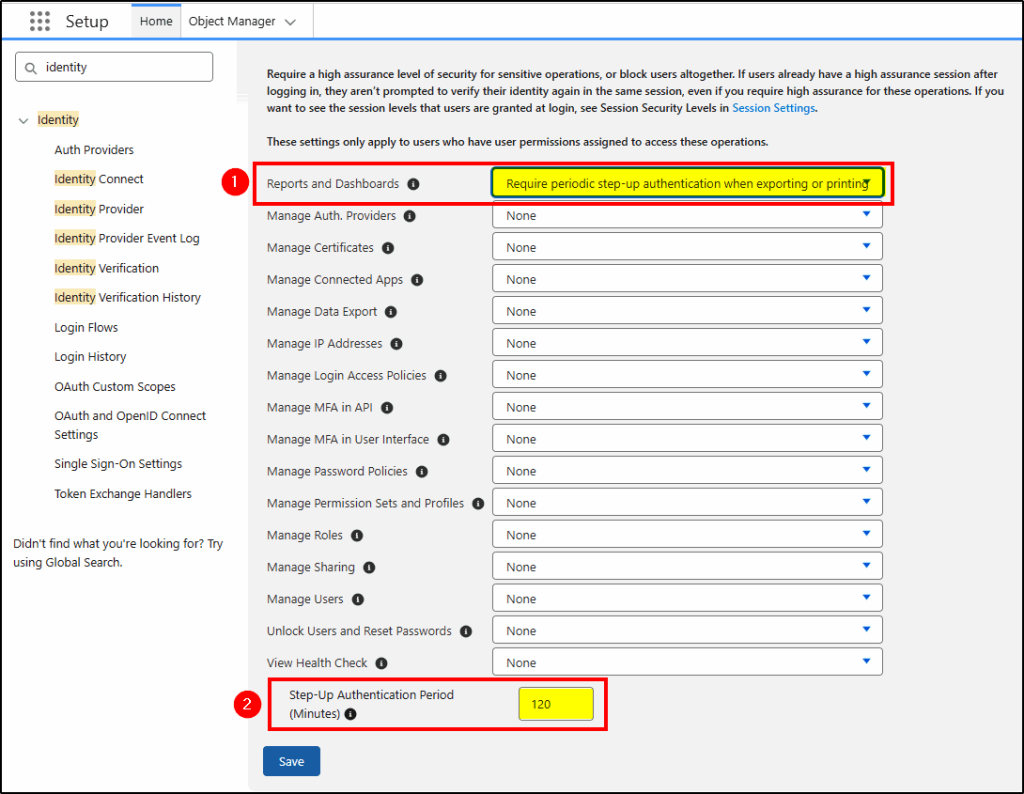
Setup -> Indentity Verification
- A new setting for Reports and Dashboards
- The timing parameter
Next to the Reports and Dashboards parameter in Identity Verification is the parameter: “Require periodic step-up authentication when reporting or printing”. (1) This is what will force the user to re-authenticate when exporting or printing a report.
If this parameter is not yet enabled in your org and you wish to test the functionality, you can manually select the value above. Remember that during the 30-day implementation window, it will be set to permanent.
The second parameter, “Step-Up Authentication Period” is on the same screen at the bottom (2) and determines how long it will be between re-authentications. The value is from 1 to 120 minutes. If set for 120 minutes and the user reauthenticates now, it will be 120 minutes before they are required to authenticate again when printing or exporting reports.
More details about the change are in this help & support article from Salesforce.
https://help.salesforce.com/s/articleView?id=005321566&type=1
Salesforce Limitations to Report Extracts
These new Salesforce security updates have forced popular Salesforce data management tools, such as Xappex, to change their data extraction methods to use the Analytics API. Although this new method allows users to pull reports, there are still some limitations to take into account:
* Org-wide row limit. Salesforce caps Analytics API usage at about 3,000,000 rows per hour across your entire org. This limit is shared — if multiple users in the same org are pulling report data simultaneously, they’re all drawing from the same pool. Heavy concurrent usage can exhaust it quickly.
* Report exports are now limited to 2,000 rows (only in Xappex free plans) due to the limitations on Salesforce’s reporting infrastructure and APIs.
The Xappex solution
The Xappex XL-Connector and G-Connector tools connect Excel (or Google Sheets) to Salesforce and offer workarounds for some of these limitations.
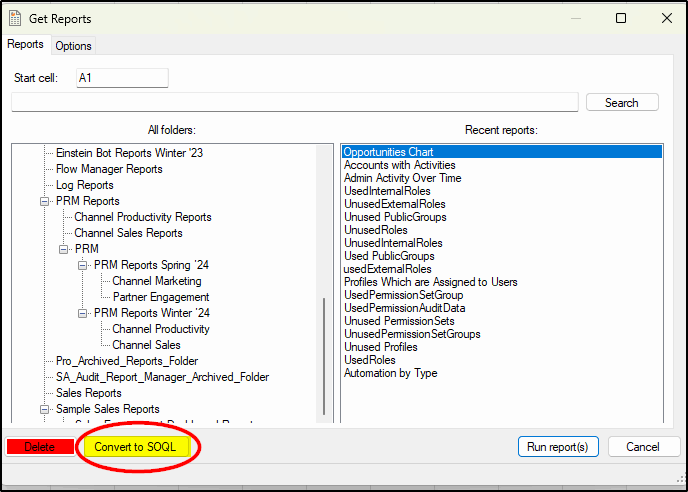
If using the free plans, when you hit the 2,000 record limit, you can use the Convert Report to SOQL tool and run your SOQL query without limitations.
When you install the XL-Connector or G-Connector free editions, you also get all the premium features to test for 14 days. After the 14 days, you can still use the Convert Reports to SOQL features for free.
On the paid plans, you can run the report extracts for much larger reports, but you will still need to keep in mind the 3,000,000 records per hour org limitation.
Link to get the app: https://www.xappex.com/get-started/
Other features include:
- Import/export data from Salesforce
- Download reports directly into Excel (not CSV format)
- Convert Reports to SOQL
- Mass update, insert, upsert, delete, and merge records in bulk.
- Download and upload Salesforce files and attachments
- Metadata tools to manage validation rules, flows, field utilization, and object access
- Duplicate record management
- Mass converting leads
- Scheduling data automations and a VBA interface
Here are some of the features of XL-Connector:
Export a Report with Xappex
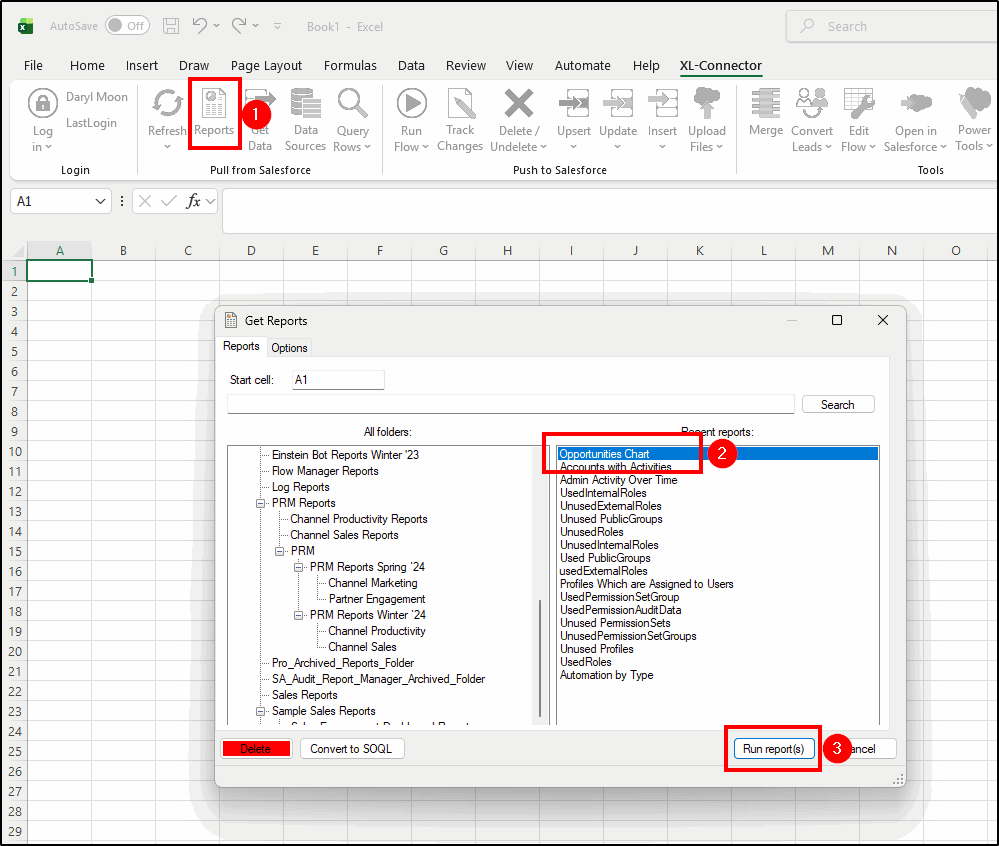
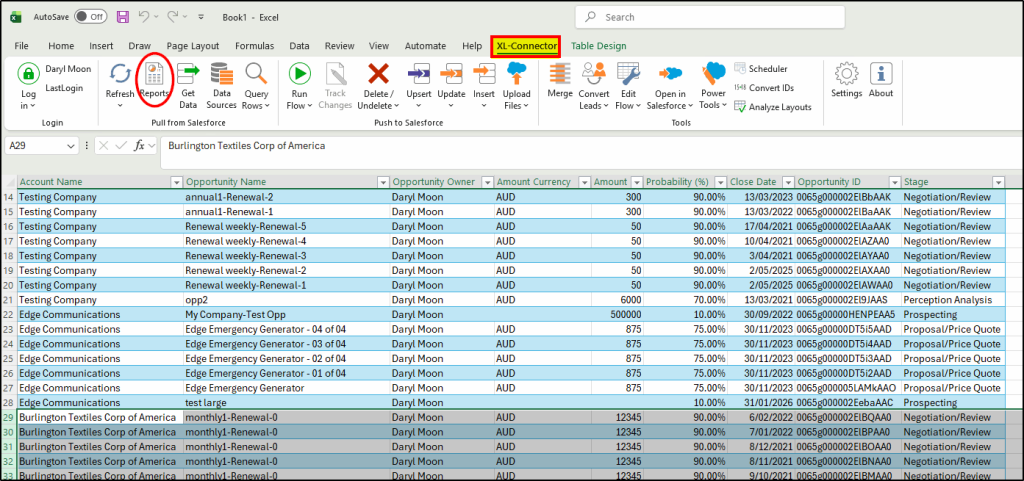
From within XL-Connector, choose the Reports button (1), select a report (2) and then Run Report (3):
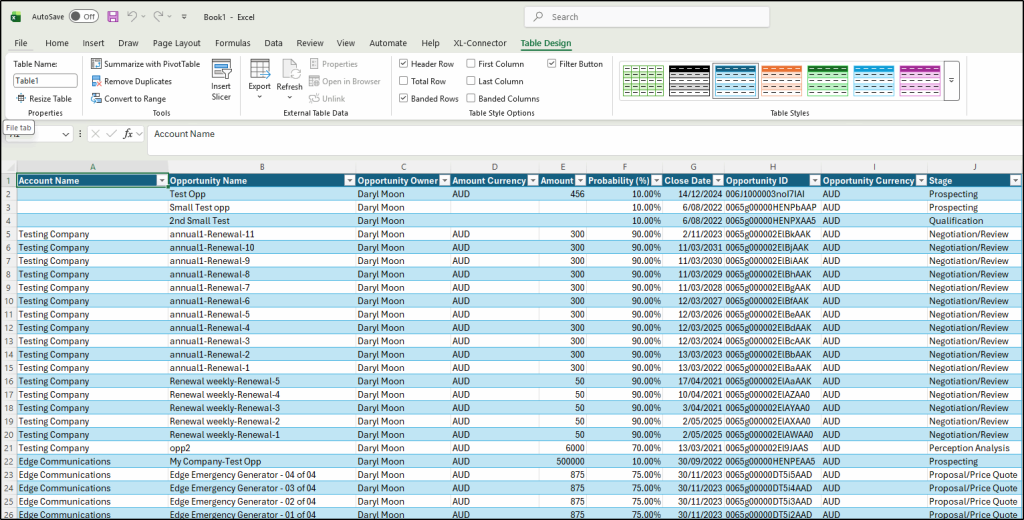
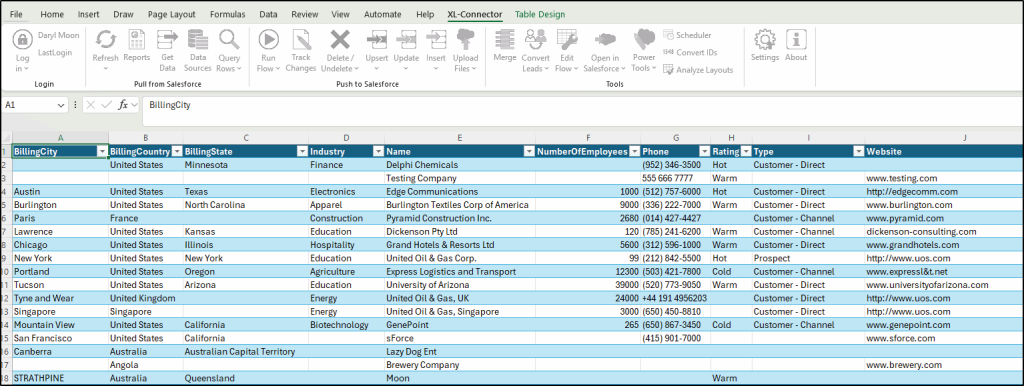
The spreadsheet is now populated with the records from Salesforce.
In the free plans, this is limited to 2,000 records.
When to use the Report-to-SOQL converter
The Report to SOQL converter isn’t just for hitting the 2,000-row cap. It also helps whenever the report method runs into Salesforce’s Analytics API limits, which are shared across your whole org: only 500 synchronous report runs per hour and 20 concurrent requests. So if several users pull report data at the same time, or you run frequent scheduled imports, you can exhaust those limits and hit rate-limit errors.
SOQL avoids this because it uses the general API pool, which is far larger. It’s also more stable for automations and won’t break if the underlying report definition changes.
Reports still make sense for smaller volumes
How the Report-to-SOQL converter works
This is a feature not found in any other reporting tools. It is particularly handy when you hit the 2,000-row limit when exporting reports.
Start with an existing report in Salesforce:
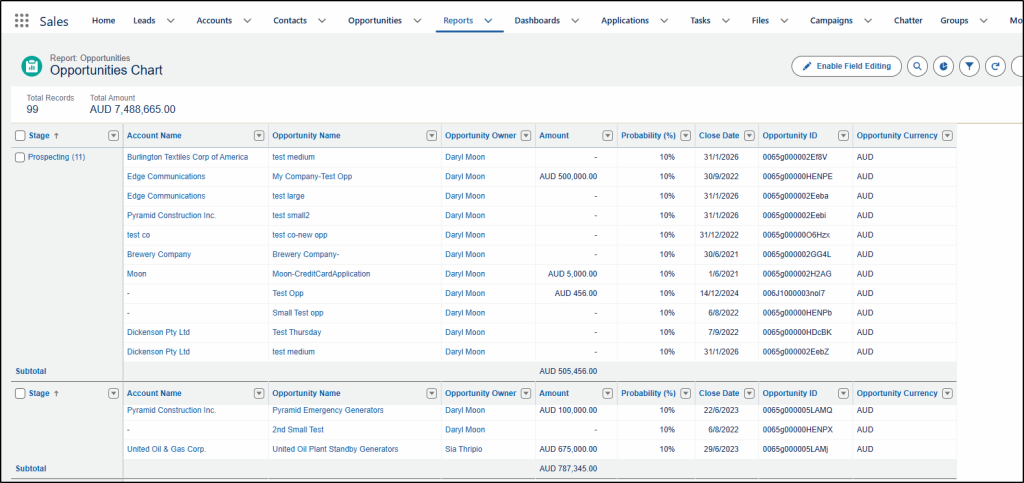
Within XL-Connector, choose the Reports button:
Choose a report and click Convert to SOQL:
The SOQL report is created. From here you can add extra fields, apply filters, modify the sort order, Execute the query or cut and paste the output.
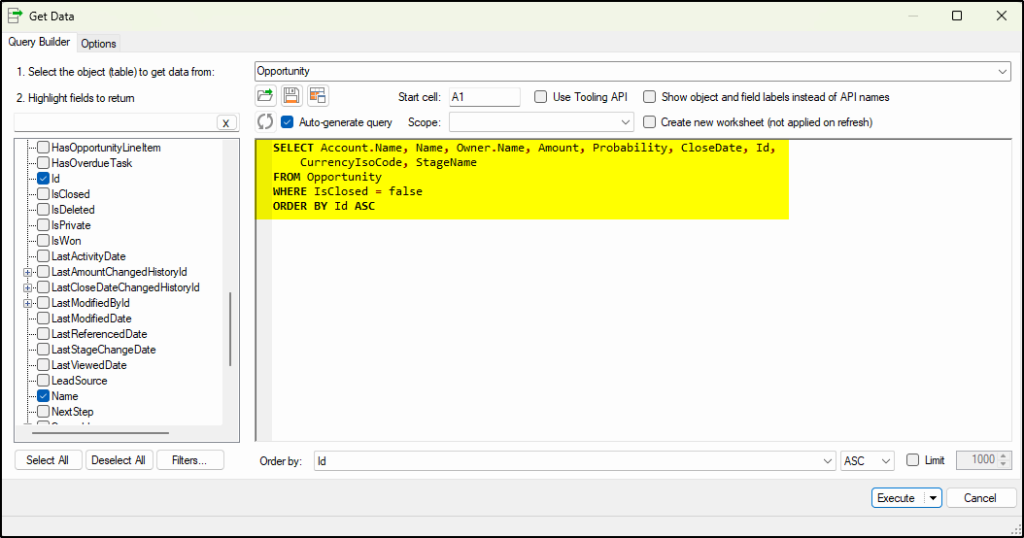
Write your own SOQL Queries
You can also use the SOQL Query Builder and write your own queries, using the point-and-click tool to select the objects and fields you require. Add filters and choose options to further modify your extract.
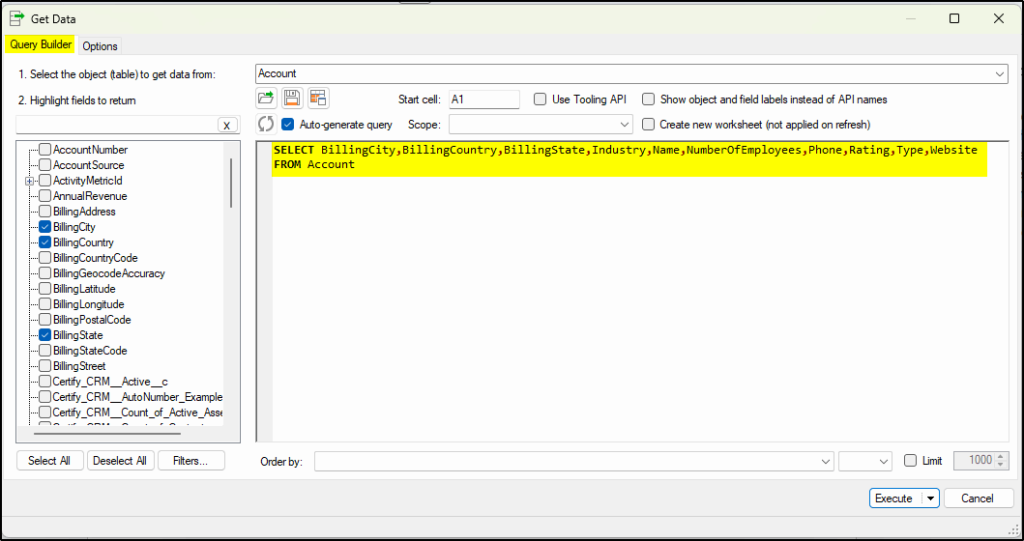
Once you execute the query, the results are returned to your spreadsheet:
The downfall of the Native Google Connector
While the Google connector was initially a good method to extract reports, it still suffers from the 2,000 record limit and does not offer a workaround. With all the Salesforce security updates this year, it has really struggled to keep up with the changes, making it quite buggy and unreliable.
The Xappex G-Connector for Google Sheets integration offers the reports to SOQL converter feature and helps users extract big reports (on the paid plans). Having a team of experienced support for backup is another major benefit of the Xappex solutions.
Choose your tool:
What are you waiting for?
Give XL-Connector a test and see the benefits yourself.
or try G-Connector for Google Sheets:
or for Microsoft Office 365 on PC or Mac, try XL-Connector 365