
Spring 26 Flow Features
This post covers only the new Flow features in the Salesforce Spring 26 release.
I have a separate post for Spring 26 Admin features here.
New Flow Types
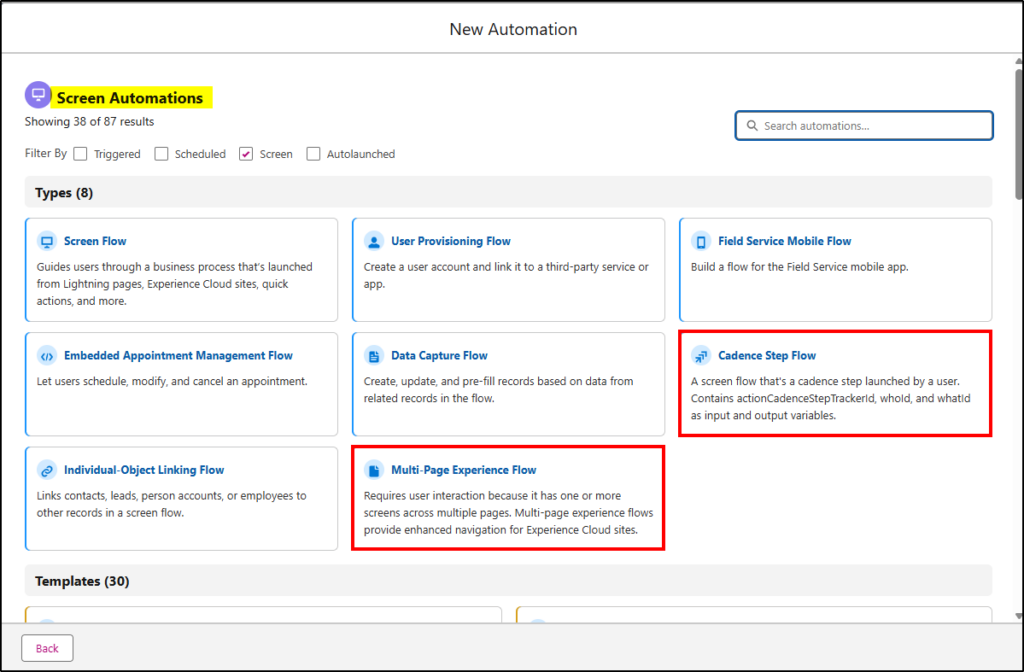
Two new screen flow types came out with the pre-release but only one survived. The Multi-Page Experience Flow, aimed at Experience Cloud flows, seems to have been recalled. Hopefully, it will reappear soon. The other new screen flow type is a Cadence Step Flow. Cadences are a concept associated with complex sales processes.
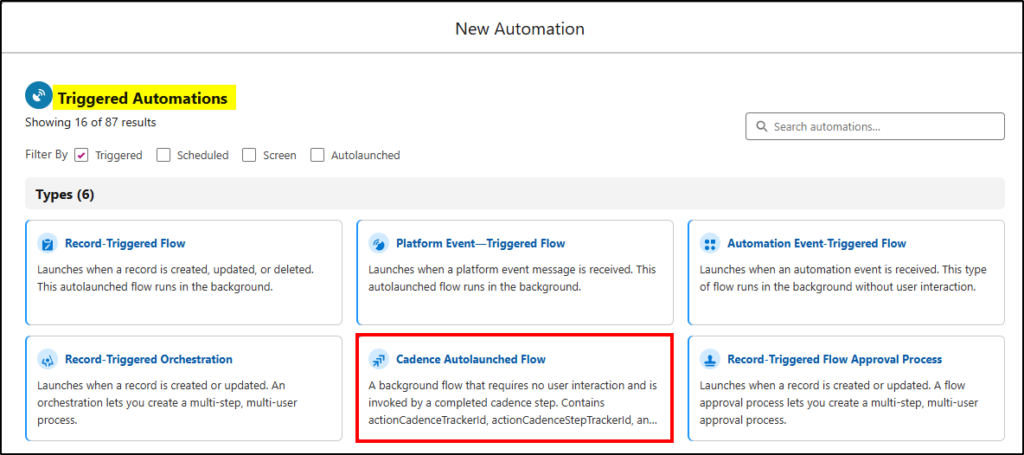
There is also a Cadence Autolaunched Flow too, that is triggered on the completion of a Cadence step.
Screen Flow Styling
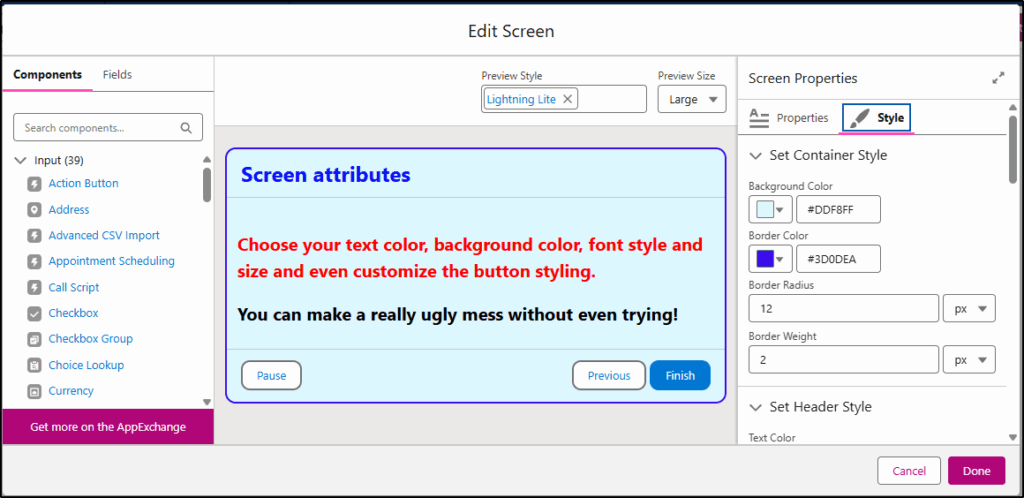
In Spring ‘26, you can start to apply more styling to screen flows. Customize the background, border color, border radius, font type, size, and color, and adjust the shape of the Next, Previous, and Pause buttons. You can also apply attributes to the buttons when you hover over them or select them, too.
With this great power comes great responsibility. You can create a really ugly mess without trying!!
Collapse Components
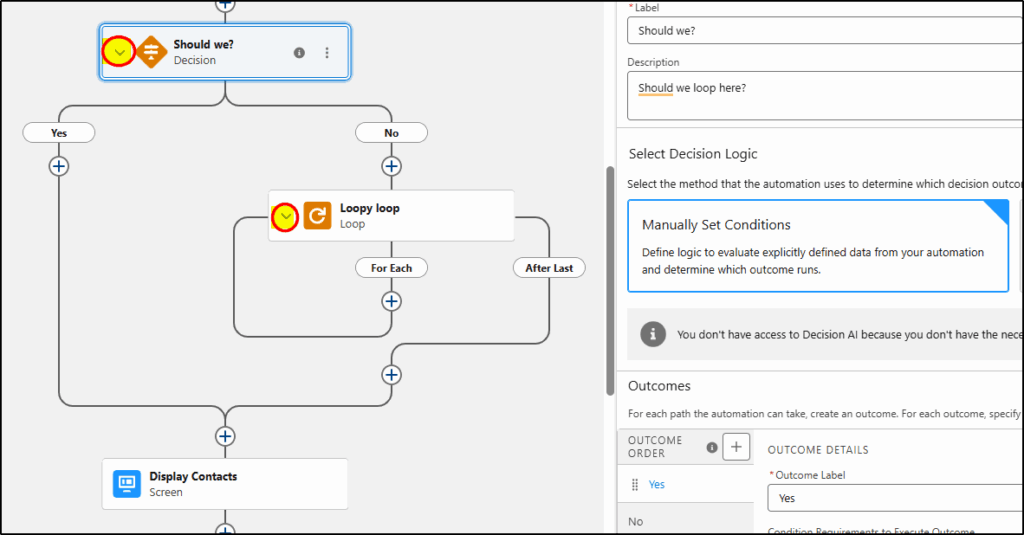
To keep your canvas clear of detail and make navigating and debugging easier, you can now collapse the Loop or Decision elements with the small “caret” icon on the left side of the element. (see pic)
Flow Scrolling
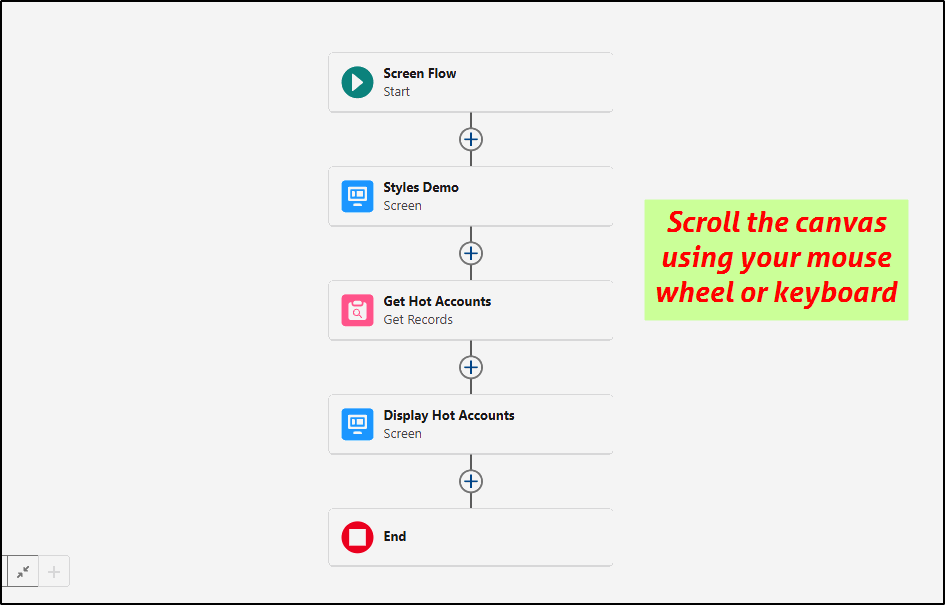
Use your mouse wheel, arrow keys, or Page Up/Page Down to scroll your flows up and down.
Click the left mouse button, then move left/right for sideways scroll.
Flow Message Components
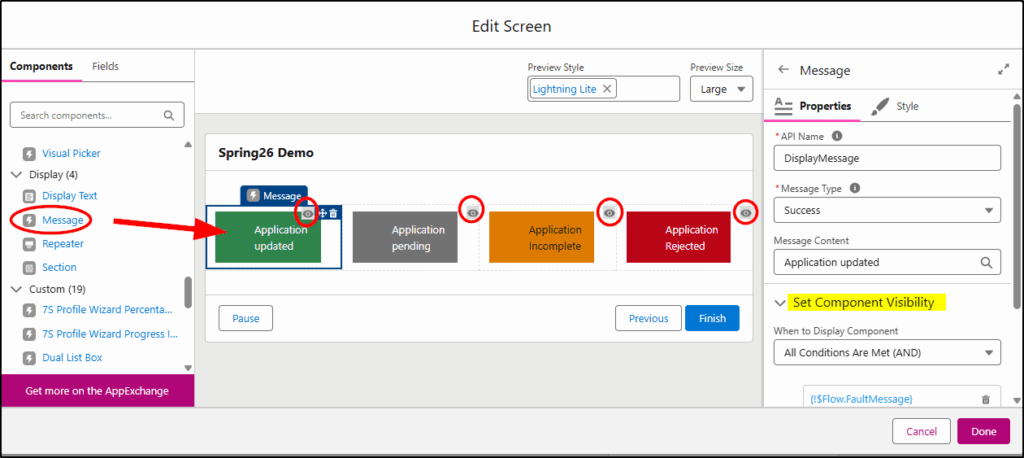
Add the new Message component to your screen flow when you need to display information such as a success, warning, informational, or error message. Four types of messages are available with similar attributes to the standard toast messages. Combine with Component Visibility to dynamically show the correct message.
Kanban Board Component
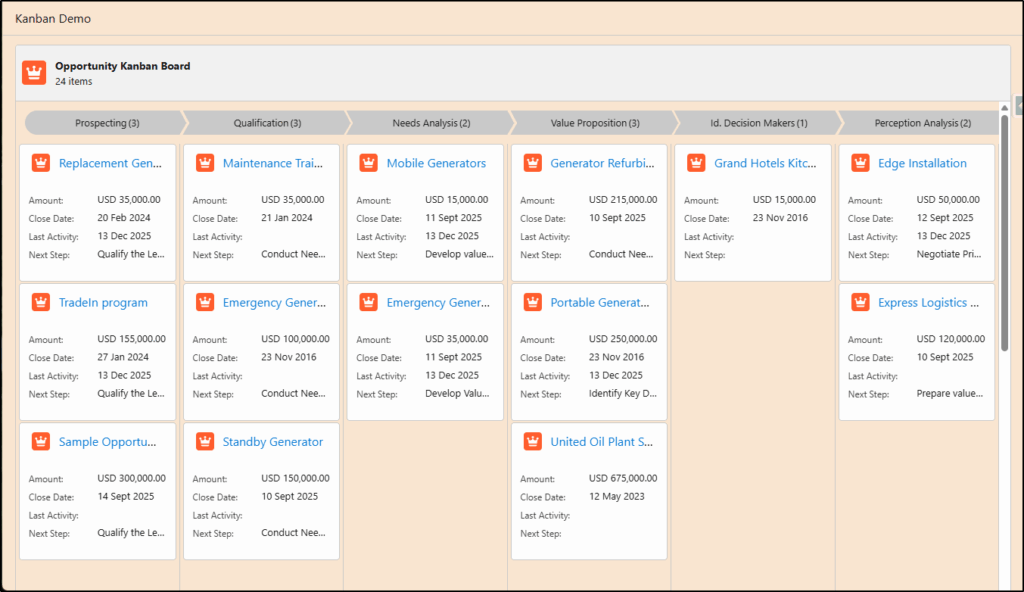
Adding the Kanban Board screen component to your screen flow enables you to have greater control over how you visualize Salesforce records. Include up to five (5) fields and include both header and footer fields.
Display a path type or simple header at the top of the board. Apply styling to the screen to suit your corporate colors.
Preview Files
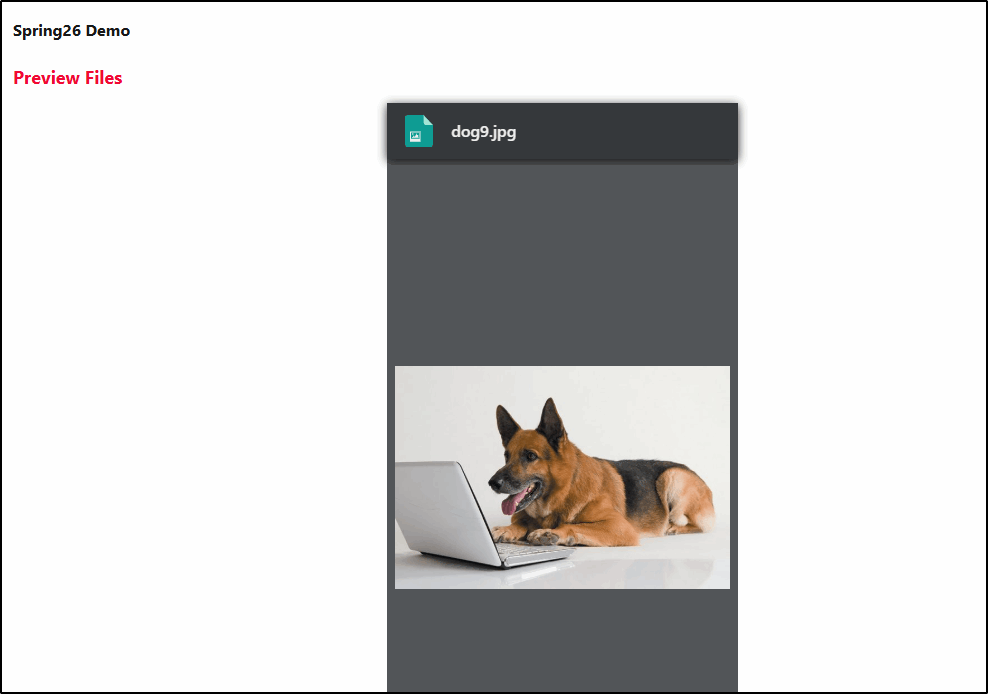
Preview files directly inside the flow without needing to download them to a local device first. The new File Preview component just needs a ContentDocumentID to display a (supported) file.
Debug Improvements
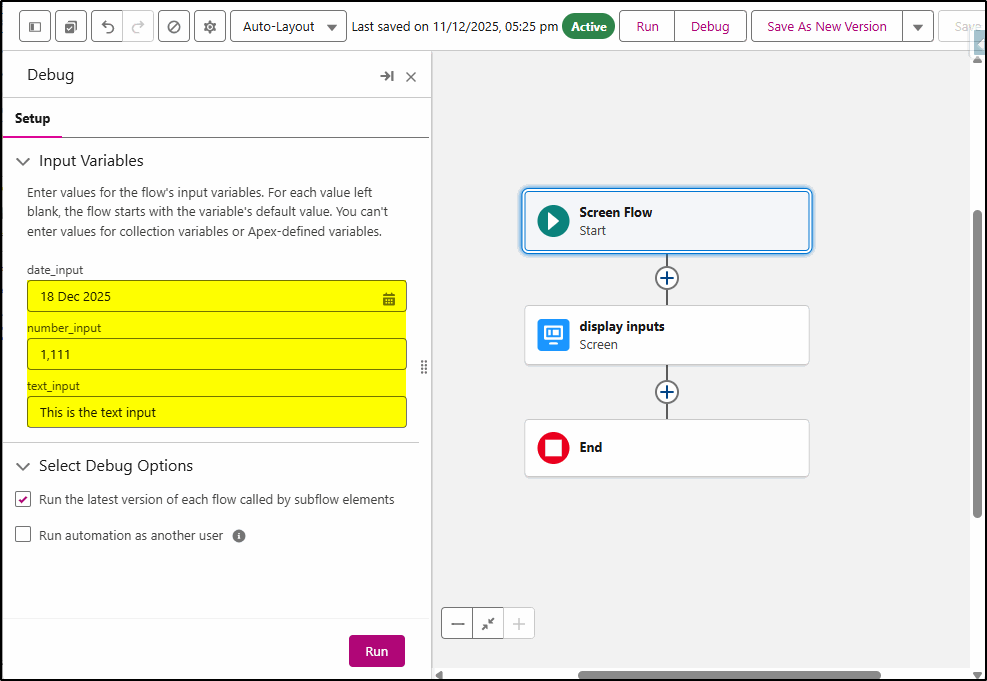
When debugging a flow, the values you have input to test the flow are retained in your browser cache, so the next time they are still there, not need to re-enter values every time you run the debug again.
Even if you close then reopen the debug side panel, they are still there.
Applies to Screen Flows and Record-Triggered flows.
Trigger Flow on Files
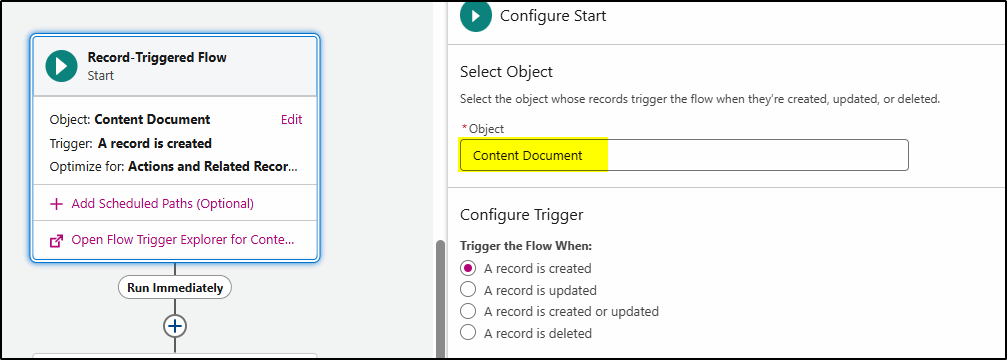
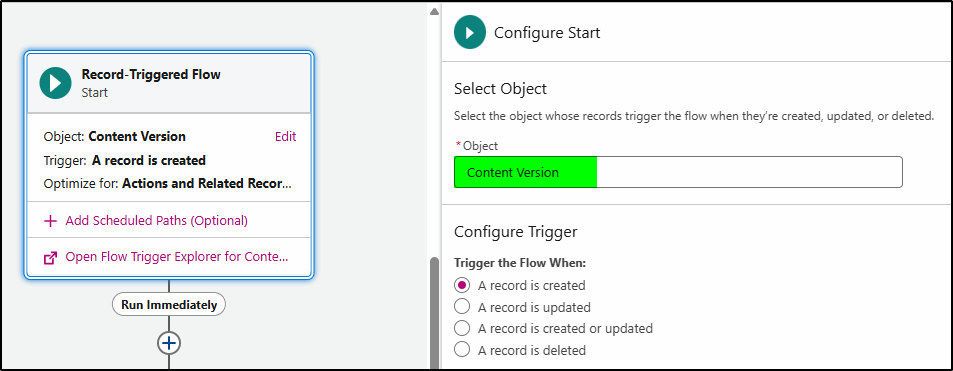
You can now trigger flows on Content Document and Content Version objects. A great use case is one where you are awaiting a customer to upload a file for an application, you can now trigger the next step in the process automatically when the desired file is uploaded.
Flow Logging
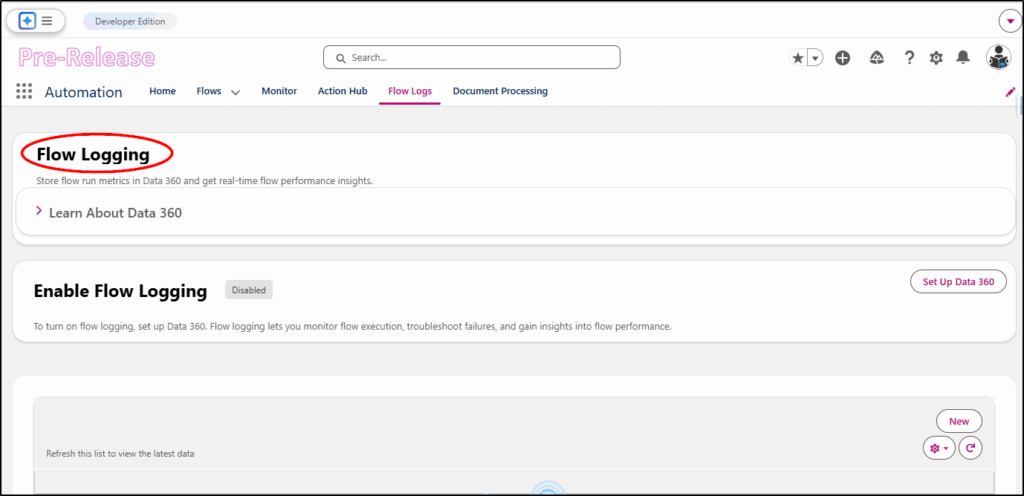
If you have Data Cloud* enabled in your org, you can generate and log metrics in Data Cloud every time you run a flow. This can include completion time, status, and errors, and can be turned on and off for individual flows. Note: Use of this feature does consume Data Cloud credits. This feature is in the Automation app (not from setup).
* unfortunately you can’t install Data Cloud into an existing Developer org (mine is a pre-release dev org)
Flow Usage
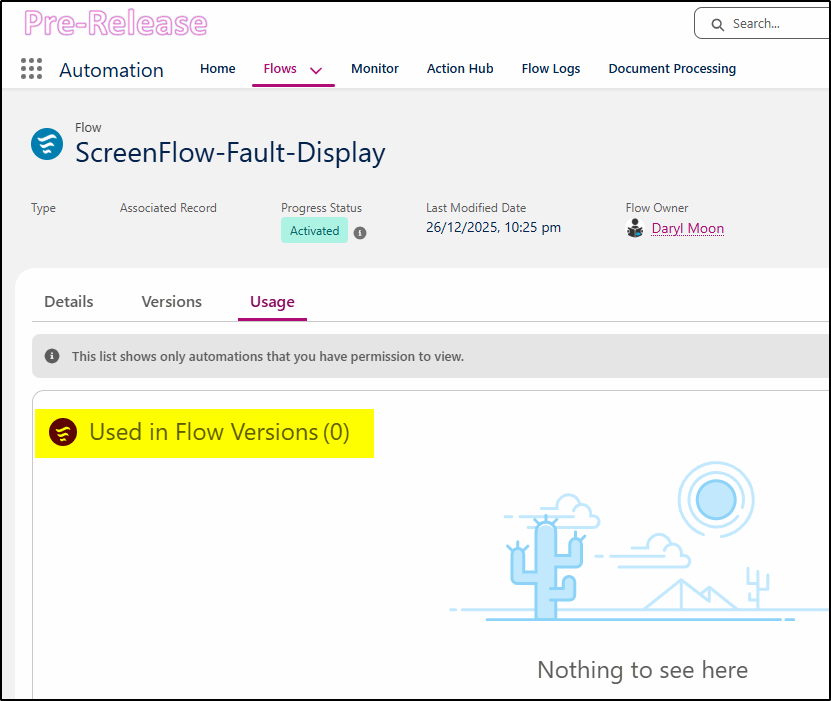
From the Automation App, the new Flows => Usage tab is supposed to show where a flow is being used. I have a screen flow named ScreenFlow-Fault-Display that is called by a number of other screen flows (it handles faults), but it does not show where it is used by other flows. Hopefully, by the time this release reaches production, this issue will be fixed.
I have another post that covers just the Admin features of Spring 26.